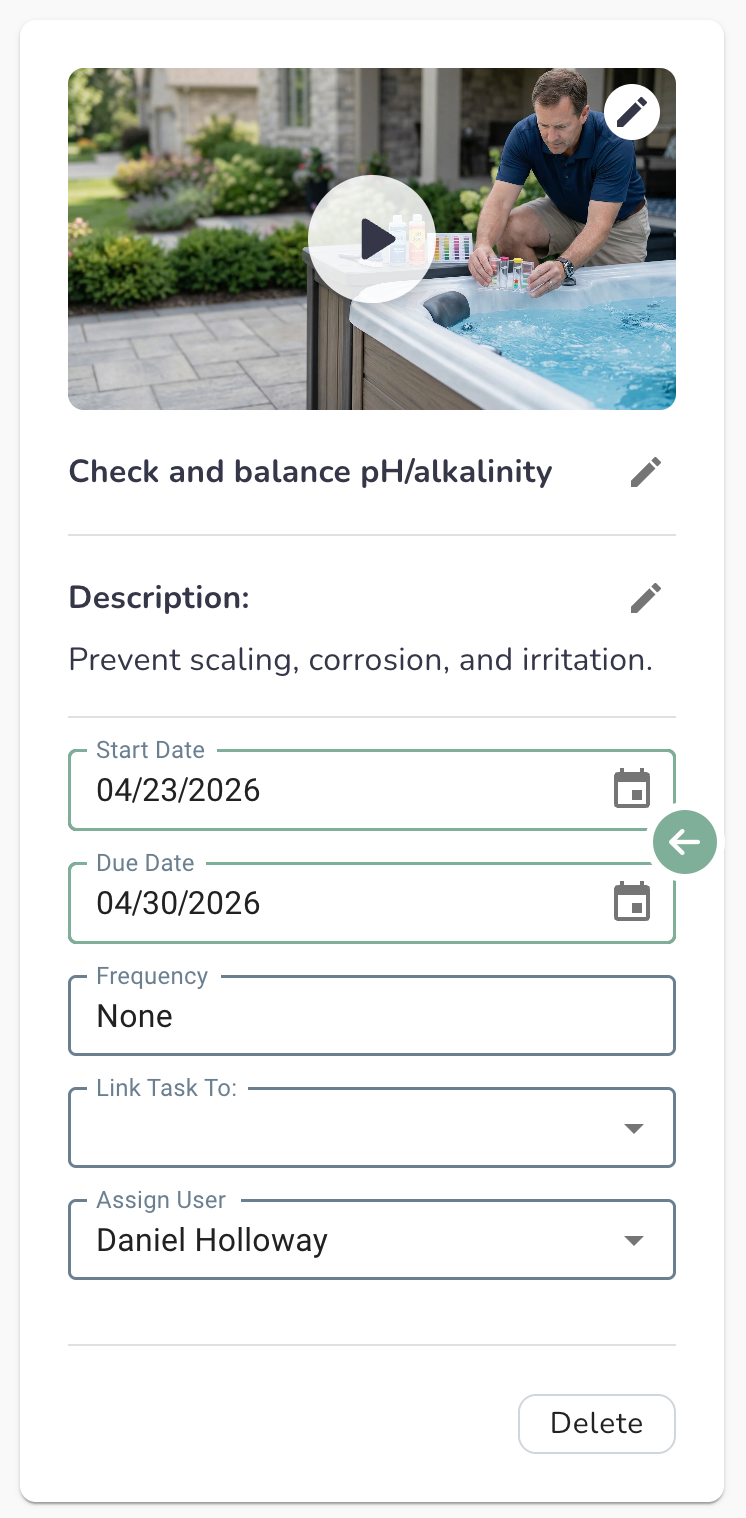
How to Set Due Dates & Reminders
Quick Answer
You can set a due date when creating or editing a task to help track when it needs to be completed.
Step-by-Step
Option 1: While Creating a Task
- Go to the Tasks tab
- Click Add Task
- Enter task details
- Select a Due Date
- Click Save
Option 2: Edit an Existing Task
- Go to the Tasks tab
- Open the task
- Set or update the Due Date
- Click Save
What to Expect
- The task will show a due date in your task list
- It may appear as upcoming or overdue
- It can show on your dashboard for visibility
Common Issues
I don’t see a due date option
Make sure you’re editing or creating a task.
The due date didn’t save
Click Save before leaving the task.
I missed a due date
You can update it anytime or complete the task when finished.
Helpful Tip
Adding due dates helps you stay ahead of maintenance instead of reacting when something breaks.
Related Articles
- How to Create a Task
- How to Assign a Task to Someone
- How Recurring Tasks Work