
How Recurring Tasks Work
Quick Answer
Recurring tasks automatically repeat on a schedule (like monthly or yearly) so you don’t have to recreate them each time.
Step-by-Step
Set a Recurring Task
- Go to the Tasks tab
- Click Add Task
- Enter the task name (e.g., Replace air filter)
-
Set a Due Date
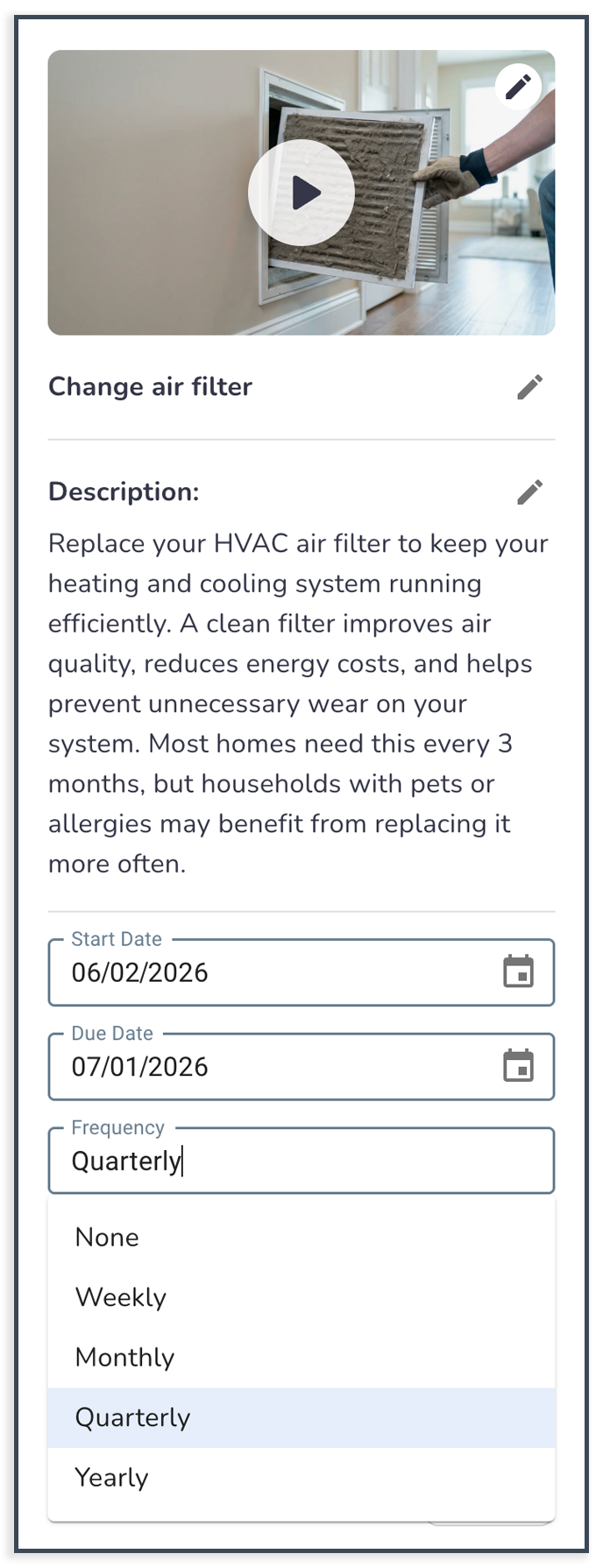
Enable Recurring (or Repeat)
Choose how often it repeats:
- Weekly
- Monthly
- Yearly
- Click Save
Make an Existing Task Recurring
Go to the Tasks tab
Open the task
Choose the Frequency
Common Issues
I don’t see the recurring option
Make sure you’re creating or editing a task.
The next task didn’t appear
Recurring tasks usually generate the next task after the current one is completed.
The timing feels off
Check the repeat schedule and due date settings.